Rabot 101: Setting up Rabot Core | Pack Video
Last updated: April 22, 2026
This article provides a step-by-step guide to setting up Rabot Core (Formerly known as Pack Video) for Packiyo customers. We'll begin by configuring a station in the Rabot Admin Console, followed by downloading and installing Rabot Pulse. Finally, we'll cover how to connect your Packiyo instance to Rabot.
We will first have to create a virtual station before registering it on Rabot Admin Console.
Go to your Rabot Admin Console and log-in (e.g. it will look like[yourcompanyname].rabot.us). NOTE: You will need to be an admin user to complete this step.Go to Settings > Stations. Click the '+' to set up a new station. For the station ID, we recommend following a simple naming convention that gives anyone enough information about the station purpose, location within your network, as well as the location within your warehouse. For example, using the convention
[State/airport code] [warehouse number]-PACK-[Station number], a station located at your Dallas, TX warehouse could look likeTX01-PACK-04
Download Rabot Pulse from rabot.us/downloads on your computer at the pack workstation. Navigate to the Download desktop App and select it to start downloading Pulse.
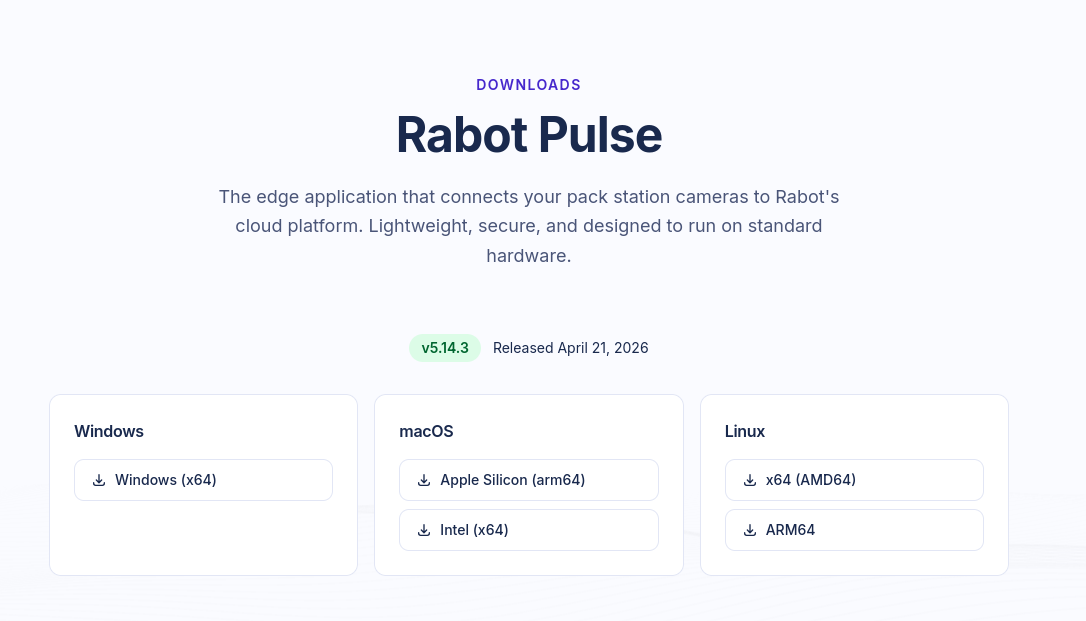
Install the Rabot Pulse app on the workstation where you would like to set up Core Bundle.
You will now be prompted to register your station on Rabot Admin Console
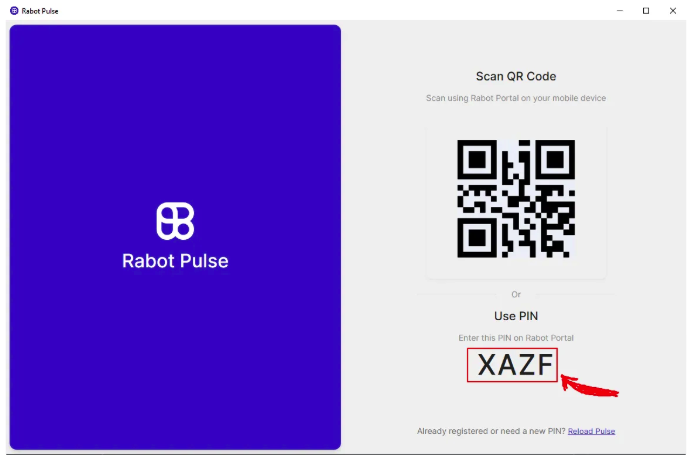
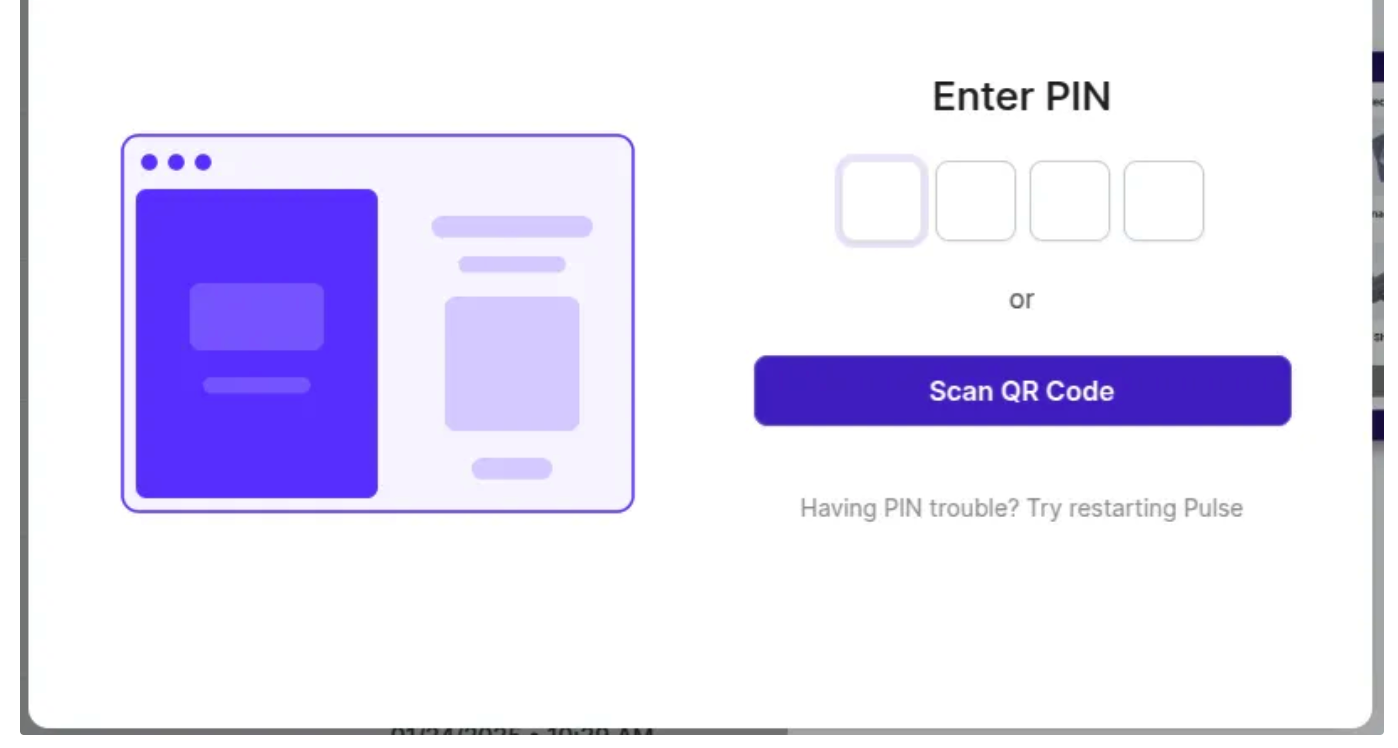
You're now ready to register your station on Rabot Admin Console. Click on the Pulse tab and click "Register".
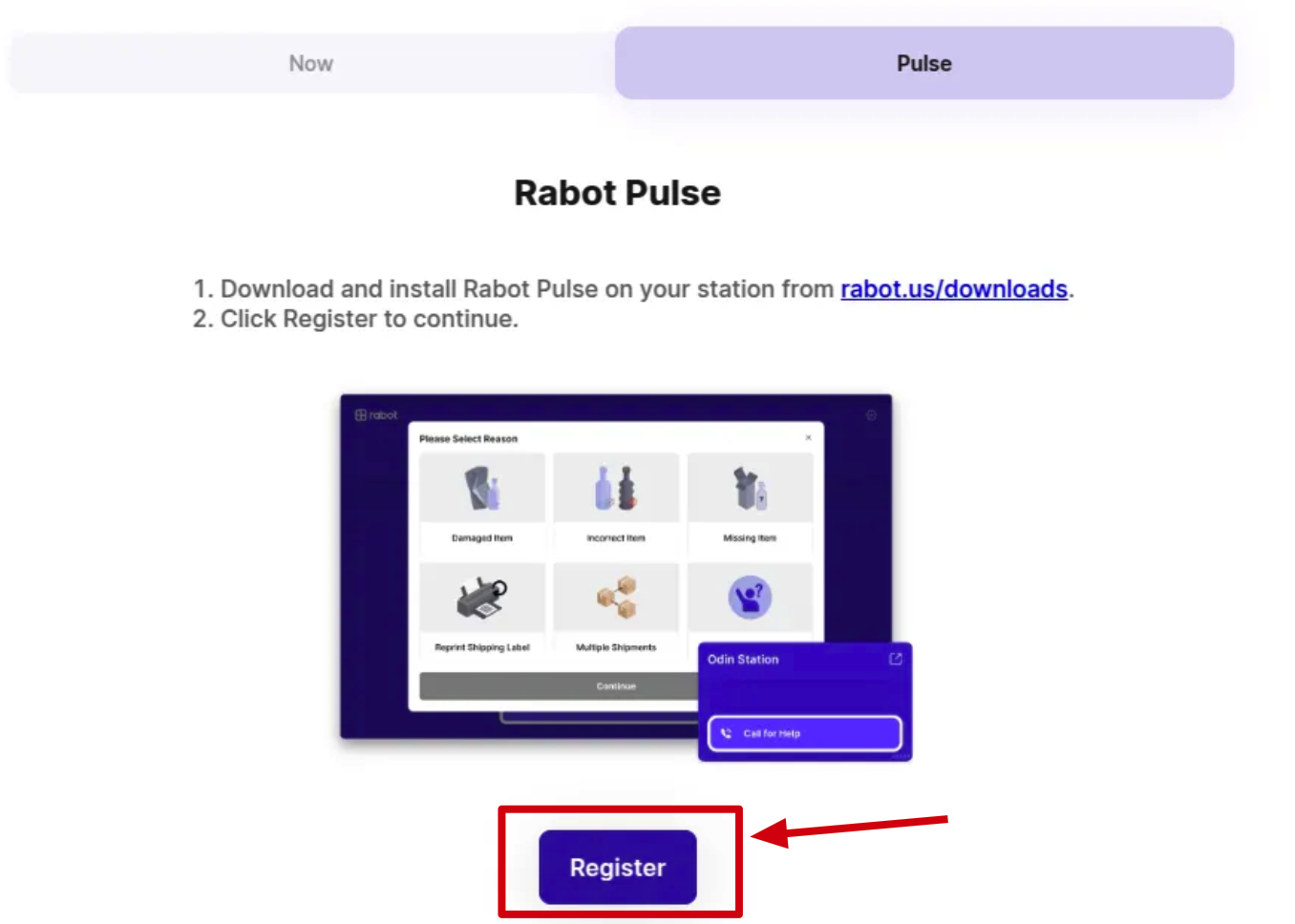
Enter the PIN code that shows up on the Pulse App:
You will be prompted to select your default URL for Pulse.
-> For ShipHero it is: https://shipping.shiphero.com
-> For Packiyo it is your respective packiyo url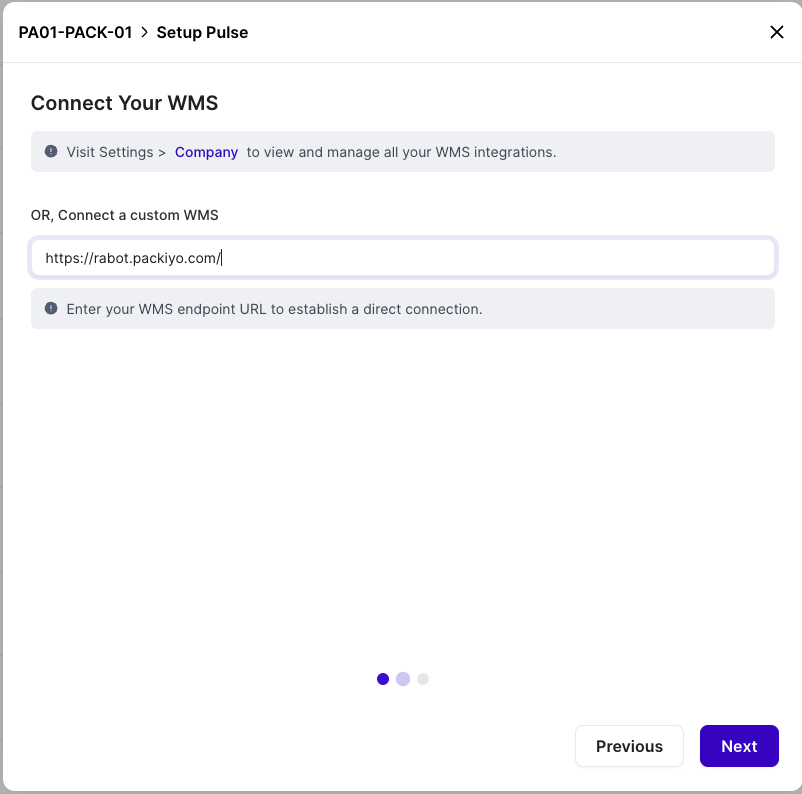
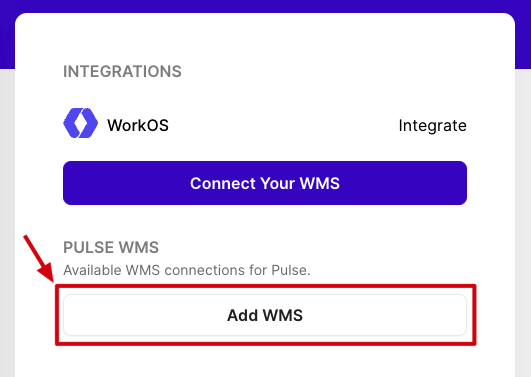
If this has not been set up before, then go to Settings > Company and add your default URL under Pulse WMS > Add WMS:
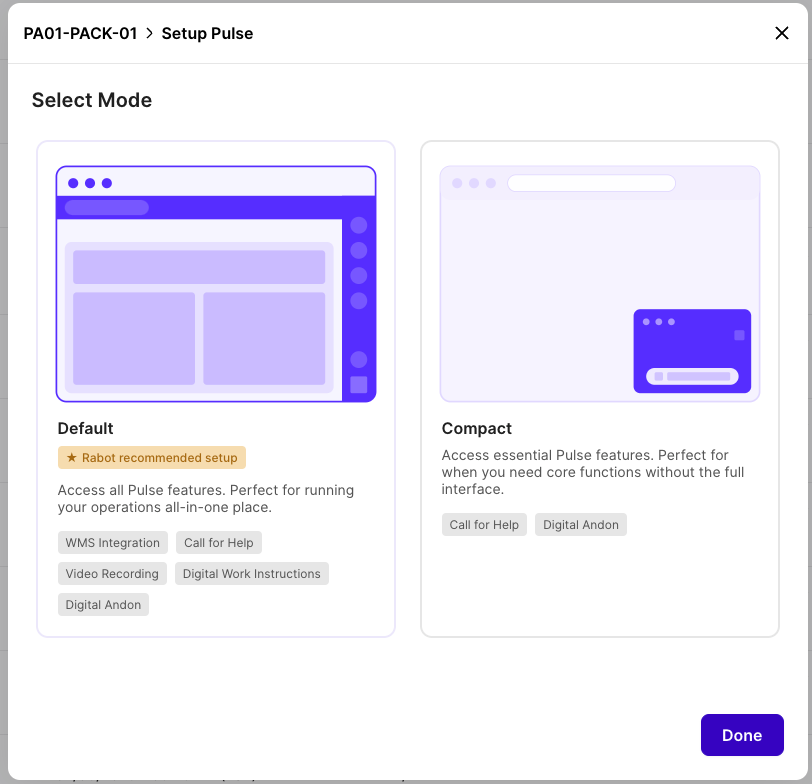
Select the mode of operation.
NOTE: Most customers choose to use the Default mode (i.e. run your WMS within Rabot Pulse. This will allow operators to navigate within Packiyo WMS and have access to key operator tools - like Call for Help.
You will now see that the Rabot Pulse app at the workstation is launched and showing the WMS view mode.
Follow the instructions for the wizard to set up your camera, andon light, printers as follows:
Connect the camera sent in your kit to an available USB port on the workstation (where Rabot Pulse is installed):
Next, connect the andon light to the workstation using an available USB port.
Next, you can easily select the printers you plan to use at the workstation to print documents (e.g. packing slips) and for printing labels (e.g. shipping labels).
Finally, you can connect the Barcode scanner that will be used at the station and test it out. This will ensure that our app keeps track of the orders scanned at the station
You’re all set to begin using Rabot Core !
You can now log into your Packiyo account and process an order.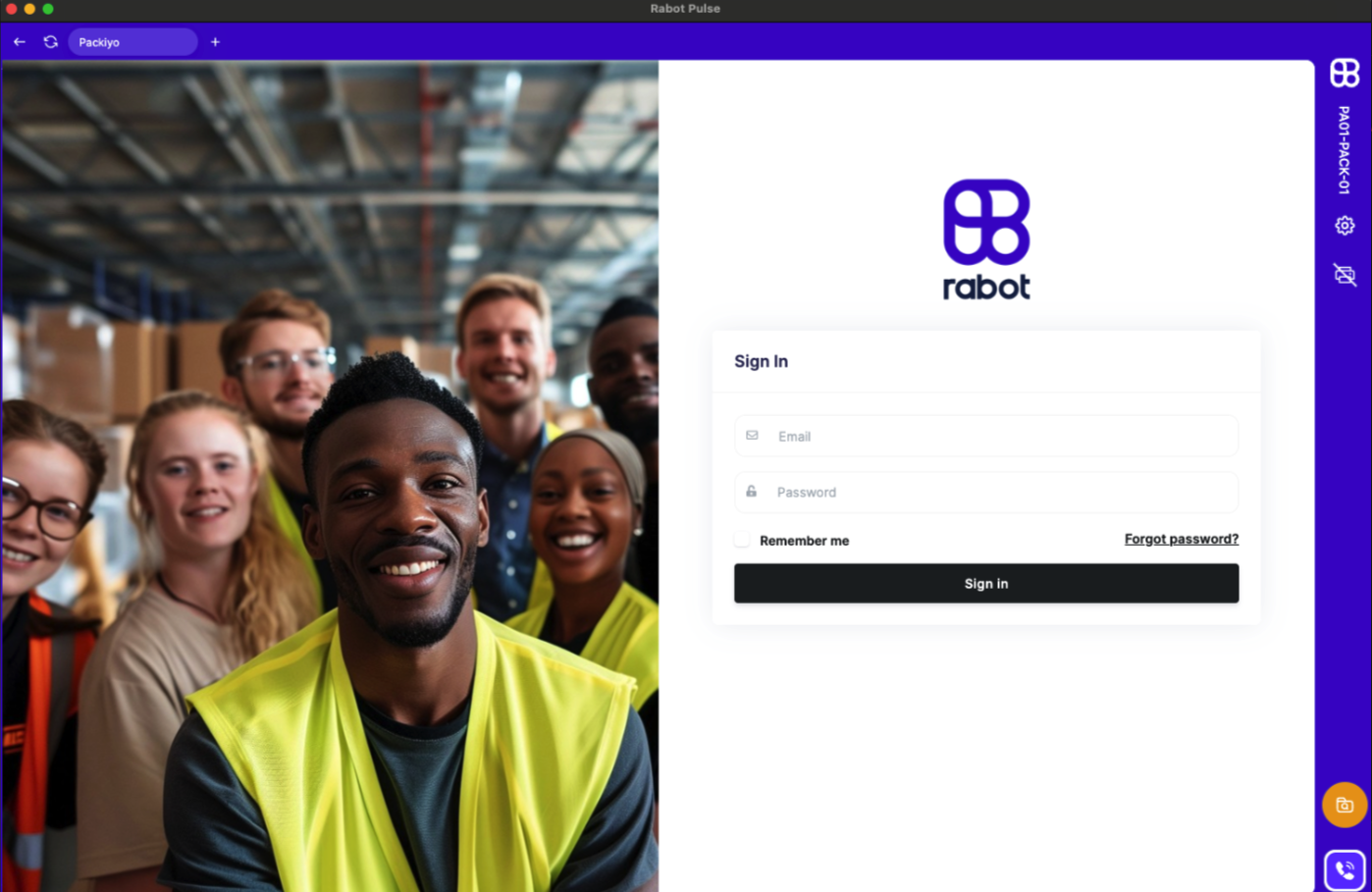
Once the order is complete, the corresponding video will be available on your Rabot Admin Console at
https://yourcustomername.rabot.us(replace yourcustomername with your actual company name.
Navigate to Orders to find the video recordings.