Client Sharing
Last updated: April 6, 2026
Purpose
Client Sharing provides a powerful way to give clients direct visibility into their operations through Rabot’s video insights. By enabling client access, you promote transparency, build trust, and reinforce accountability—allowing clients to review pack-out footage and independently validate process quality.
This article outlines the required settings to enable this functionality. Before proceeding, ensure you have Manager or Admin privileges, as these are required to configure client access.
Step 1: Create a Client in the Rabot Admin Console
Log in to the Rabot Admin Console.
Click your profile name in the top-right corner, then select Clients from the dropdown menu.
Choose one of the following:
Add New Client: Create a new client profile.
Select Existing Client: Modify settings for an existing brand.
Below snapshot shows the client settings module:
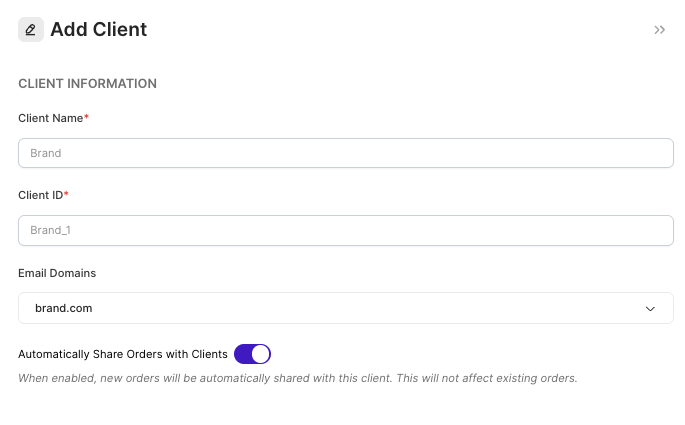
Verify the client’s email domain is correct to ensure users with that domain can access videos.
The email domain refers to the part of an email address that appears after the “@” symbol (e.g., for user@brand.com, the domain is brand.com).
Locate the Auto-Share Videos toggle for the selected client. When enabled, the client will have access to all videos processed at warehouses equipped with Rabot cameras that correspond to their brand.
Note: Clients will only be able to view videos associated with their brand. They will not have access to videos belonging to other brands.
Here is a quick recap video of the above steps:
Step 2: Add Client users to Rabot
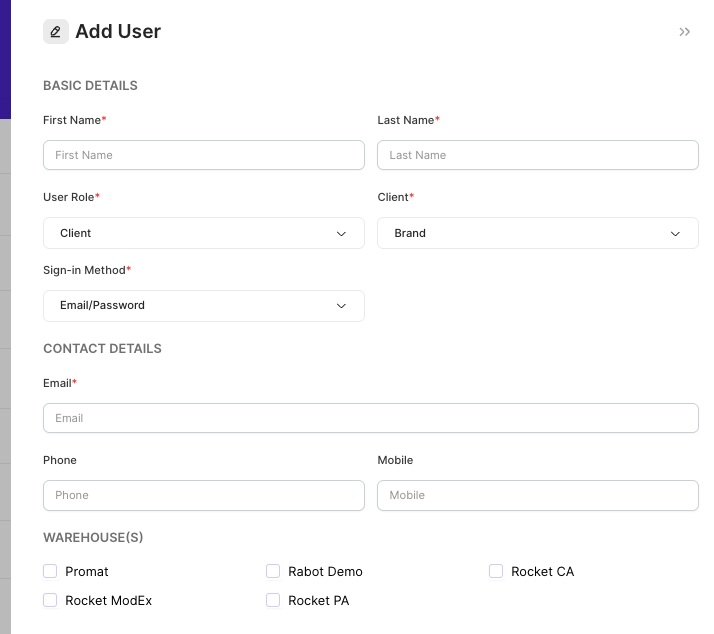
Navigate to settings and select Users → Add User.
Enter the client user’s name and email address using the verified domain.
Assign the appropriate role - In this case "Client"
Select the client this user is associated with.
Select the warehouse this user should have access to.
Click Send Invite to provide access credentials. Your clients will get an email inviting them to join Rabot.
Once invited, confirm that users can successfully log in and view videos according to the configured permissions.