Rabot : Call for Help Alerts with Slack Integration
Last updated: April 6, 2026
Enabling Slack Integration for Call‑for‑Help Alerts
Empower your team to respond instantly whenever an packer taps Call for Help in Pulse by piping those alerts straight into a Slack channel. Follow the quick steps below to connect Slack, pick the channels you want, and tailor the call‑reason list.
Who can do this?
Rabot admin inside the Rabot Portal
Slack workspace admin (you may need permission to install apps)
Tip : If you are not a Slack admin, invite one to walk through the authorization steps required.
1. Open the Company settings
In the upper‑right corner of any Rabot screen, click your avatar / name.
From the dropdown choose Company.
The Company page opens.
2. Navigate to Integrations → Slack
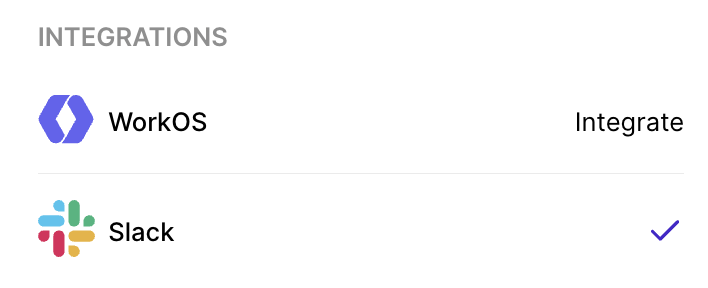
On the right‑hand panel you will see Integrations. Here, you will need to click on Slack
3. Authorize Rabot in Slack
A Slack pop‑up will appear.
Choose the Slack workspace you want Rabot to post to (top‑right of the dialog if you have multiple workspaces).
Under “What will Rabot be able to do?” review the requested scopes. Rabot only needs permission to post in the chosen channels.
In “Where should Rabot post?” open the channel picker and select (or create) the channel that will receive Call‑for‑Help alerts.
Example:#rabot-callforhelp‑alertsClick Allow.
You will return to Rabot and see a green check‑mark next to Slack – integration is live!
4. Customize Call‑for‑Help reasons
Still on the Company page, scroll to CALL REASONS.
Click Configure Call Reasons.
Add, remove, or reorder reasons to fit your operation (e.g. Printer jam, No labels, System offline).
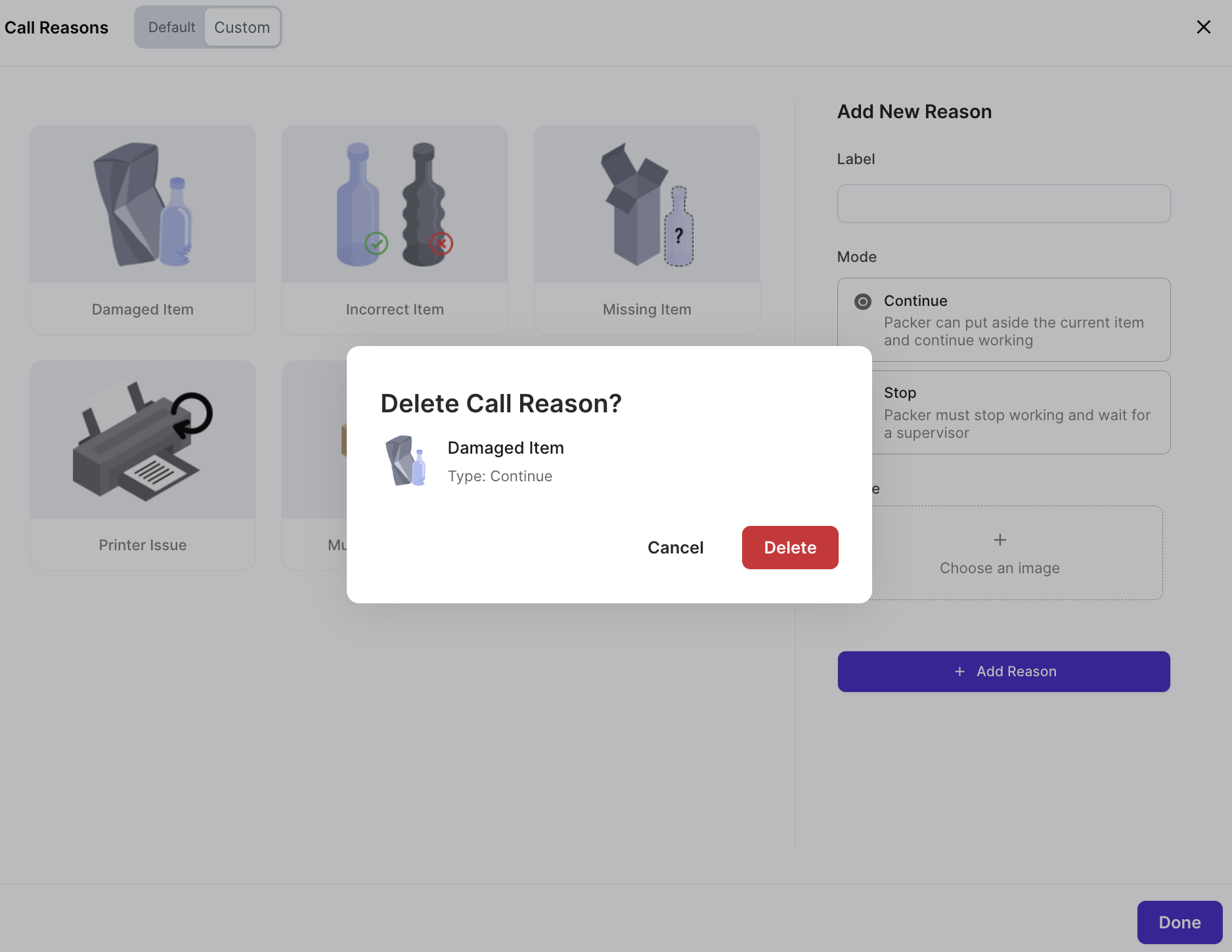
Hit Add Reason, then close Done
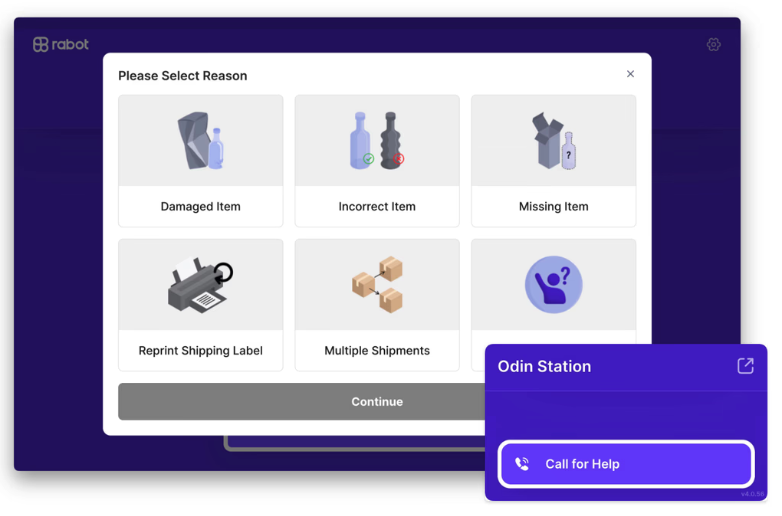
These reasons will appear on the Pulse App so operators can pick the right one—every alert sent to Slack will include the chosen reason.
5. Test the workflow
On any pack station PC, open Pulse
Click Call for Help icon on the bottom right of the screen
Pick a reason and send the alert.
Confirm the chosen Slack channel receives a message from @Rabot within a few seconds.
If nothing arrives, check that the channel is still enabled and that the Slack workspace admin hasn’t revoked the app.
FAQ & Troubleshooting
Symptom | Likely Cause | Fix |
“Allow” button is greyed out in Slack | You’re not a Slack admin | Ask a workspace owner to authorize the app or grant you permission. |
Wrong team is receiving alerts | The wrong channel was chosen during authorization | Remove the channel in Rabot and add the correct one. |
You’re all set!
Your operations team will now see Call‑for‑Help alerts in Slack in real time, speeding up response and keeping production flowing.
Need more help? Drop us a line at support@rabot.us or ping us in your Rabot Slack channel.